
Introduction
So I was tasked with writing a pro-code solution to generate Azure Resource groups using C#. What I ended up with is a simple, scalable function that takes in a parameter object and automatically creates a resource group within an Azure subscription.
Although limited to creating Resource Groups this solution has the potential to be extended to create more complex resources and hence is a good starting point.
Its worth noting that this is not a fully fledged system design – but just the core logic used to do the work of creating resources that can be incorporated into a larger solution.
Assumptions
- An Azure Entra Tenant and Subscription
- A user account with Contributor RBAC role (at least) at Subscription level
- Some sort of IDE e.g. VS Code, Visual studio
Create a User Assigned Managed Identity
This is will be used by whatever service (e.g. app service, function app) you choose to incorporate the build logic into to create the resources against the Subscription – Later we will assign this to the App service which creates the Resource
- Login to your Azure Tenant
- In the top search bar, type Managed Identities, select it and Click Create to open the wizard to create a new User Assigned Managed Identity
- Fill in the details
- Subscription – choose your subscription
- Resource Group – choose or create a resource group
- Region – select region
- Name – name your User Assigned Managed identity
- Click Create
Add the RBAC Contributor Role to the new User Assigned Managed Identity
In order for the User assigned Managed Identity to create resources inside the Azure subscription it must be assigned the Contributor role at Subscription level
- Login to your Azure Tenant
- In the top search bar, type Subscriptions
- Select your Subscription from the list
- Click the Access Control (IAM) blade
- Click Add Role Assignment
- Find the Contributor Role on the priveliged roles tab
- In the Members tab click ‘Managed Identity’
- Select your User Assigned Managed Identity created earlier
- Click Review and Save.
The Code
I’m going to focus on the .NET logic that does the work of creating and deploying the Resource Group at this point – the solution structure, presentation layer, business logic etc can be recreated based on your personal preference. For reference I followed Clean Architecture principles when building my solution.
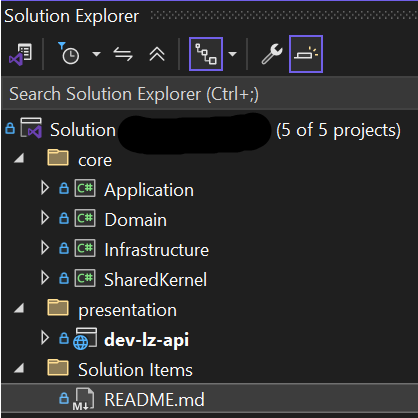
Below is the .Net logic that builds, creates and deploys a new Resource Group to a Subscription
using Microsoft.Azure.Management.ResourceManager.Models.ResourceGroup;
using Azure;
using Azure.Core;
using Azure.Identity;
using Azure.ResourceManager;

......

private async Task<string> CreateResourceGroup(CustomResourceGroup resourceGroup)
{
/*Using Environment variables for the Managed Identity as this is local development mode - once deployed this will use the ideneity if the User Assigned Managed Identity once associated with it in the Portal*/
  DefaultAzureCredential credential = new DefaultAzureCredential(
       new DefaultAzureCredentialOptions
       {
           ManagedIdentityClientId = Environment.GetEnvironmentVariable("AZURE_CLIENT_ID")
       });


//Using Environment variables as this is local development mode
var subscriptionId = Environment.GetEnvironmentVariable("AZURE_SUBSCRIPTION_ID");

//Create the ArmClient - this will be used to read/write to the Subscription
var client = new ArmClient(credential, subscriptionId);

//Fetch the subscription using the subscription Id
 var subscription = client.GetSubscriptions().Get(subscriptionId).Value;

//Create the Resource Group
 var rg =  resourceGroup.Location == null ? new ResourceGroupData(AzureLocation.UKSouth) :
     new ResourceGroupData(new AzureLocation(resourceGroup.Location));

//Append Tags to the soon to be created Resource Group
ResourceGroupData.Tags (IDictionary<string, string>)
 if (resourceGroup?.Tags != null && resourceGroup.Tags.Count > 0)
 {
     foreach (var tag in resourceGroup.Tags)
     {
         if (tag == null) continue;
         var tagName = tag.Name?.Trim();
         var tagValue = tag.Value ?? string.Empty;

         if (!string.IsNullOrWhiteSpace(tagName))
         {
             // upsert tag value
             rg.Tags[tagName] = tagValue;
         }
     }
 }

//Create the Resource group against the Subscription
 var rgLro = await subscription.GetResourceGroups().CreateOrUpdateAsync(WaitUntil.Completed, resourceGroup.Name, rg);

//Return details of the new Resource Group for validation
 var resourceGroupId = rgLro.Value.Id;
 return resourceGroupId;
}
Below is the custom class CustomResourceGroup object parameter being passed in which is used to pass details describing the new Resource group to be created
public class CustomResourceGroup
{
    public int Id { get; set; }
    public Guid ResourceGroupId { get; set; } = Guid.NewGuid();
    public string Name { get; set; }
    public string Description { get; set; }
    public string Location { get; set; }
    public List<Tag> Tags { get; set; }
}
Deploy your application logic and assign the User Assigned Managed Identity
As stated earlier, I have made no assumptions as to how you will wrap your application logic once created but lets say you have used a function app or app service, you will now need to ensure that the User Assigned Managed Identity created earlier is now assigned to whatever service you choose to deploy as it is the User Assigned Managed Identity that has permissions to create resources against the Subscription.
Test It
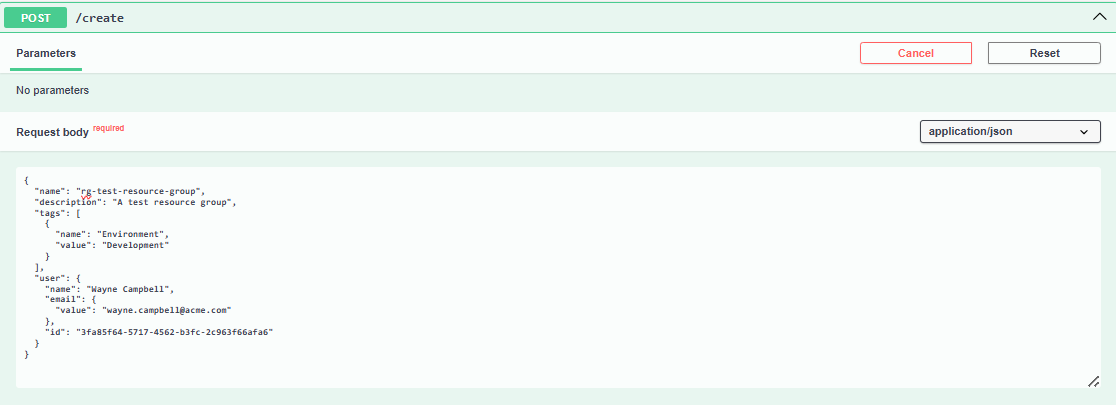
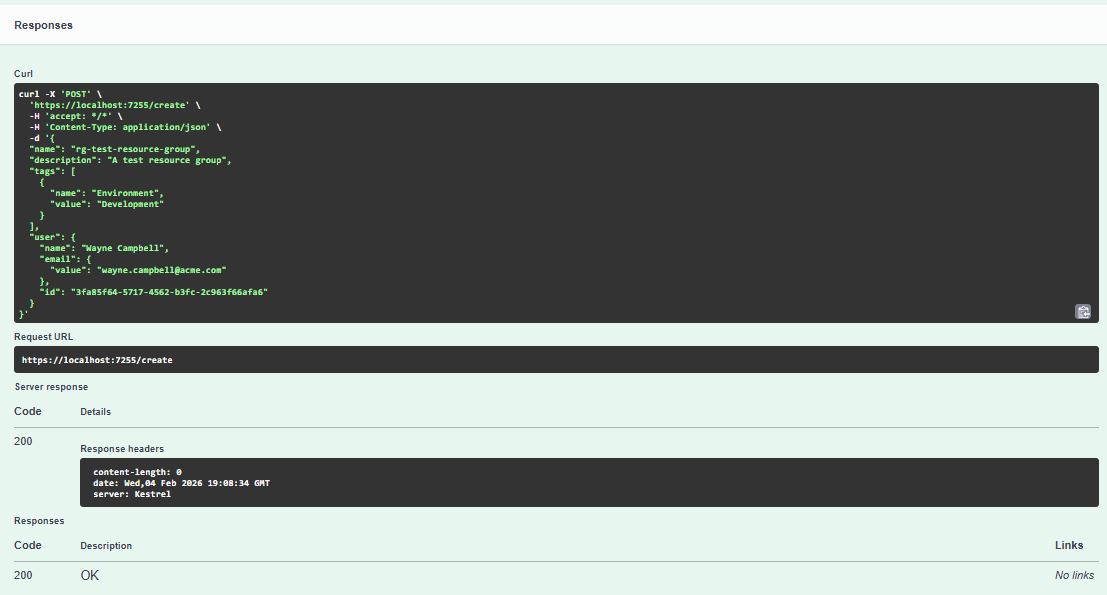
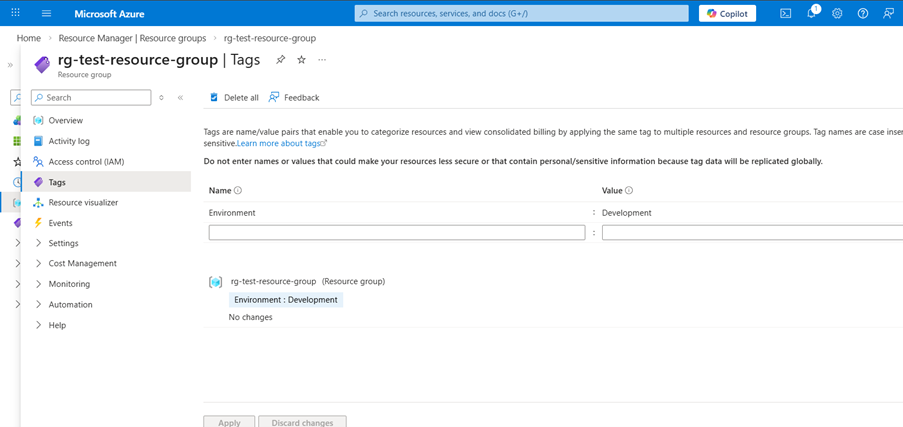
I was able to test my solution locally using swagger and see the final output in Azure – See below
The request in swagger run from local machine:
The swagger response output:
The result in the Portal:
Summary
This article describes some simple logic for creating and deploying Resource Groups to a Subscription in Azure that can be easily incorporated into a much larger solution (e.g. for automation or platform tooling) and has the potential to scale to build even more complex cloud resources.
Leave a Reply